Click Modifier Groups under the Locations & Menus module to go to the list of Modifier Groups in the venue. Modifier Groups exist at the Venue Level. Modifiers are assigned to Modifier Groups which are in turn assigned to Products. Products can have more than one Modifier Group. Modifier Groups can be configured to allow multiple modifiers to be selected for one product or to restrict the selection to just one modifier.
*If using a POS Integration please refer to the POS Integration Guide

- Adding & Editing Modifier Groups
Click the Add a Product button to bring up the Modifier Group configuration screen
* This should only be used when using Tapin2 as a standalone POS. If Tapin2 is integrated with another POS items must be added via the Menu Sync.
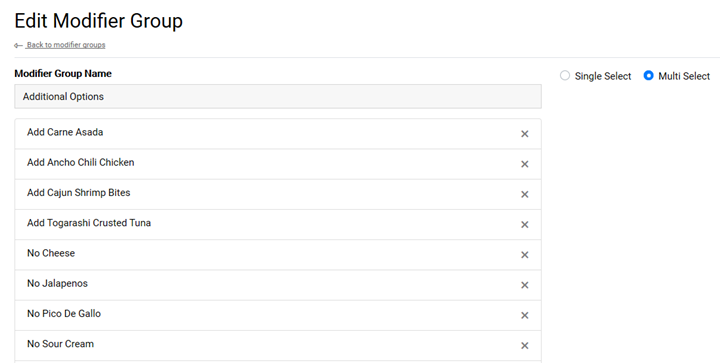
Click the Pencil button to view the settings of the modifier. From this screen you can edit the modifiers settings

MODIFIER GROUP SETTINGS
- Modifier Group Name
- Single Select – This option makes is so that only one modifier can be selected when ordering the product the group is assigned to. This is typically used for when the modifier selection is required, such as Protein for Nachos or a flavor for Soda.
- Multi-Select – This option allows the selection of multiple modifiers when ordering one product. This is typically used when the modifiers are optional choices, such as Toppings, Adding Extra, and Removing ingredients

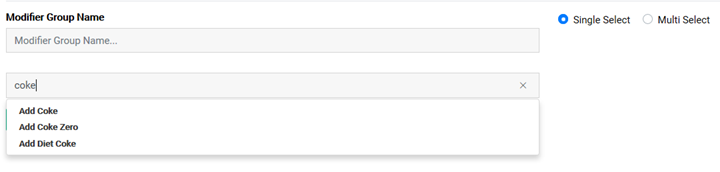
- Add Modifier to Modifier Group – To Add a Modifier to the Mod Group search for the Modifier in the search bar and click on it from the drop-down list
- Remove Modifier from Modifier Group – To Remove a Modifier from the group click the X to the right of the Modifier Name

- Search Modifier Groups – The Modifier Group Search bar can be used to search for items within the venue

- Active/Inactive Modifiers – Number on left denotes number of active modifiers in the Group. Number on right denotes how many inactive modifiers are in the group

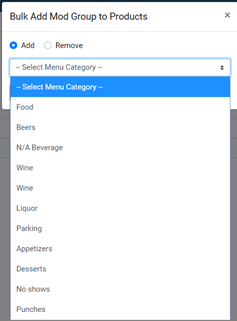
- Bulk Add Mod Group to Products – This feature allows you to add the Modifier Group to all of the Products that belong to a selected Product Type. Click the Bulk Add button then select the Product Type of the products you want to assign the Mod Group to and click Submit. This is typically used to assign a Mod Group to Products en masse such as adding Alcohol Mods to all of the Liquor Products in a Venue.

- Alphabetize Modifiers in Mod Group – You can Alphabetize the sort order of all of the Modifiers within a Modifier Group by clicking the A-Z button. This will list the modifiers in Alphabetical order within the app

- Delete a Modifier Group – To delete a modifier click the Trash Can button and confirm deletion.
