Click Menu Categories under the Locations & Menus module to go to the list of Menu Categories in the venue. Menu Categories exist at the Venue level. Products are assigned to Menu Categories from the Product settings. Menu Categories act as filters in the app, customers/servers select a Menu Category and are then taken to the list of products assigned to it to order from.
*If using a POS Integration please refer to the POS Integration Guide
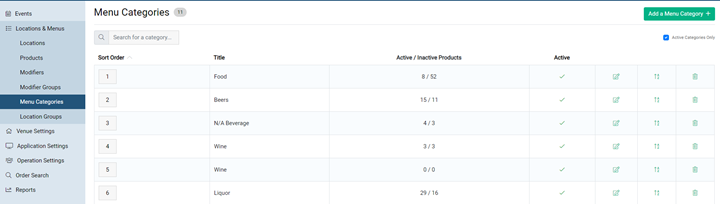
- Adding & Editing Menu Category
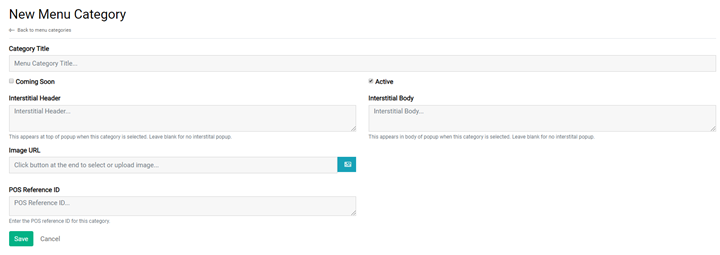
Click the Add a Menu Category button to bring up the Menu Category configuration screen
* This should only be used when using Tapin2 as a standalone POS. If Tapin2 is integrated with another POS items must be added via the Menu Sync.
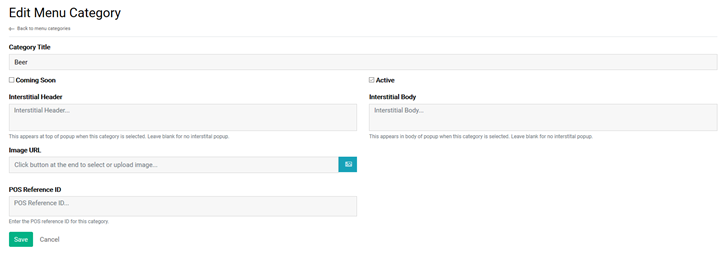
Click the Pencil button to view the settings of the Menu Category. From this screen you can edit the Menu Category settings

MENU CATEGORY SETTINGS
- Menu Category Title
- Coming Soon – Check this box to mark this Menu Category as Coming Soon
- Active – Check this box to mark the Menu Category as Active. When unchecked the Menu Category will not available in the app
- Interstitial Heading & Body – INTERNAL USE ONLY
- POS Ref ID – INTERNAL USE ONLY
- Image URL – Add a picture to the Menu Category by clicking the Image button to bring up the Add Image wizard

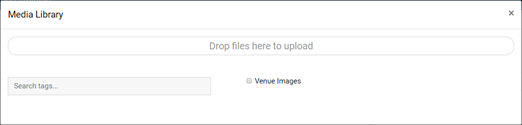
- Adding Menu Category Image via Tag – Images can be searched for and added from the Tapin2 Image Repository by typing in the name of the image you are looking for and clicking the tag from the drop down.
The Venue Images check box is used for Venue Specific Images such as those with Branding/Logos
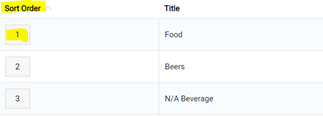
- Sort Order – You can change the order in which the Menu Category is displayed in the app by changing the sort number to the position you want the Menu Category to be displayed at and hitting enter. An example would be, if you want Food to be the first Menu Category displayed, the number should be 1
- Search Menu Categories – The Menu Category Search bar can be used to search for items within the venue
- Active Menu Category Filter – When this box is checked only Active Menu Categories will be displayed. When unchecked all Menu Categories will be displayed.

- Alphabetize Products in Menu Category – You can Alphabetize the sort order of all of the Products within a Menu Category by clicking the A-Z button. This will list the Products in Alphabetical order within the Menu Category in the app

- Delete a Menu Category – To delete a menu category click the Trash Can button and confirm deletion
